Contact Us

If you still have questions or prefer to get help directly from an agent, please submit a request.
We’ll get back to you as soon as possible.

Please fill out the contact form below and we will reply as soon as possible.

  • POS
  • Pay
  • Reservation
  • Order
  • Website
  • English (UK)
    CS Czech
    PL Polish
    DE German
    PT Portuguese
    HR Croatian
    NL Dutch
    FR French
    HU Hungarian
    SK Slovak
    IT Italian
    GB English (UK)
    RO Romanian
    ES Spanish
  • Log in
  • Updates
  • POS
  • Pay
  • Reservation
  • Order
  • Website
  • English (UK)
    CS Czech
    PL Polish
    DE German
    PT Portuguese
    HR Croatian
    NL Dutch
    FR French
    HU Hungarian
    SK Slovak
    IT Italian
    GB English (UK)
    RO Romanian
    ES Spanish
  • Log in
  • Home
  • POS
  • Comprehensive guide
  • Configure your POS
  • Old BackOffice
  • Payment

EFT Devices- Setting up a stand-alone EFT terminal 🇩🇪

Setting Up a Stand-Alone EFT Terminal 🇩🇪. This guide is for customers who do not have an integrated EFT terminal connected to their POS system. Step 1: Check EFT Device Compatibility Log in to your B…

Table of Contents

Setting Up a Stand-Alone EFT Terminal 🇩🇪 This guide is for customers who do not have an integrated EFT terminal connected to their POS system.

Setting Up a Stand-Alone EFT Terminal 🇩🇪


This guide is for customers who do not have an integrated EFT terminal connected to their POS system.


Step 1: Check EFT Device Compatibility

  1. Log in to your Back-Office.
  2. Navigate to Payment > EFT Devices.

• If EFT devices are listed, the workaround cannot be used.


Step 2: Add a New Payment Method

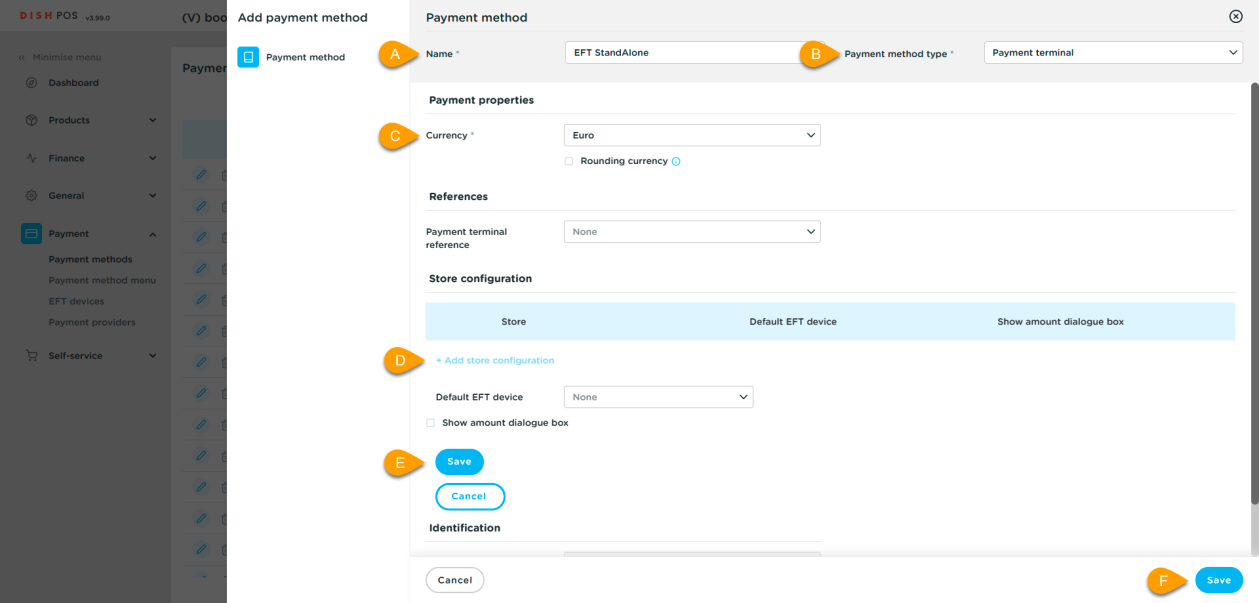
  1. Go to Payment Methods.
  2. Click + Add Payment Method.
  3. Fill in the details:

• Name: Choose a name for the payment method.

• Method Type: Select Payment Terminal.

• Currency: Choose EUR.

• Store Configuration: Click + Add Store Configuration.

  1. Click Save, then click Save again.


Step 3: Update the Payment Method Menu

  1. Open the Payment Methods Menu.
  2. Remove the old EFT payment type (if it was set as CASH).
  3. Add the newly created EFT payment method to the menu.


Step 4: Finalize Setup

  1. Navigate to General > General.
  2. Transmit provisioning and wait for it to complete.
  3. Log in to the POS app and check if the new payment method appears.
  4. Create a support ticket to enable the reopen function for stand-alone payment terminals.


independent eft terminal

Was this article helpful?

Yes
No
Give us feedback about this article

Contact Us

If you still have questions or prefer to get help directly from an agent, please submit a request.
We’ll get back to you as soon as possible.

Please fill out the contact form below and we will reply as soon as possible.

Related Articles

  • How to manage orders via the terminal?
  • How do I set up delivery areas of a restaurants location?
  • Reservations- creating a pdf file of my reservations
Logo DISH
Want to learn more
about our solutions?
Book a demo
App Store
Google Play Store
  • About
  • Contact
  • Sitemap
  • Careers
  • Home
English International
© Copyright dish.co 2025
  • Imprint
  • Terms of Use
  • Privacy Policy
  • Cooperation Partner
  • Privacy Settings
Expand